How to name bills, statements and receipts
A naming convention and folder layout for financial documents that works in any cloud drive, sorts properly in any file browser, and still makes sense years from now.
The convention
Every document gets a name in the same four parts, in the same order:
Vendor_Account_YYYY-MM-DD_Type.pdf
For example:
MFCU_Checking_2026-07-31_Statement.pdfCoastal_2026-07-08_Bill.pdf(no account: the vendor is enough)Sterling_Auto_2026-04-12_Policy.pdfApex_2026-01-31_W2.pdf
A name like that tells you what the file is wherever it ends up: attached to an email, sitting in a downloads folder, or copied to a different drive. You never need to open a PDF to find out what it is.
Six rules that make it work
1. Always write dates as YYYY-MM-DD
2026-03-04, never 03/04/26. Year-month-day sorts correctly as plain
text, so a folder of statements lists itself in date order with no help. It also cannot be
misread: 03/04 is March 4th in the US and April 3rd almost everywhere else.
2. Use the date on the document, not the day you saved it
A statement covers a period that ends on a date printed on it. Use that one. The date you downloaded the file means nothing a year later.
3. Use short codes, not full names
MFCU rather than "Meridian Federal Credit Union". Short codes keep paths readable
and avoid characters some systems reject. Choose each code once and stick to it: if
MFCU becomes Meridian halfway through, half your history sorts in
one place and half in another.
4. Separate the parts with underscores, and nothing else
Spaces, slashes, colons and ampersands all cause trouble somewhere. Underscores between parts, and no punctuation inside them, keeps every name safe on every drive and every operating system.
5. Make folders match the way you look things up
A layout like Cabinet/Bank/MFCU/Checking/ answers the questions people actually
ask, such as "where are this account's statements?". Two or three levels is usually enough.
Deeper trees look tidy but make you click more.
6. Keep an Inbox apart from the archive
New documents land in an Inbox folder and stay there until they are named
properly. Nothing goes into the archive half-filed, so whatever is in the archive can be
trusted.
What it looks like
Here is a household's documents after filing. Every name follows the convention, and the folder each one sits in is built from the same parts:
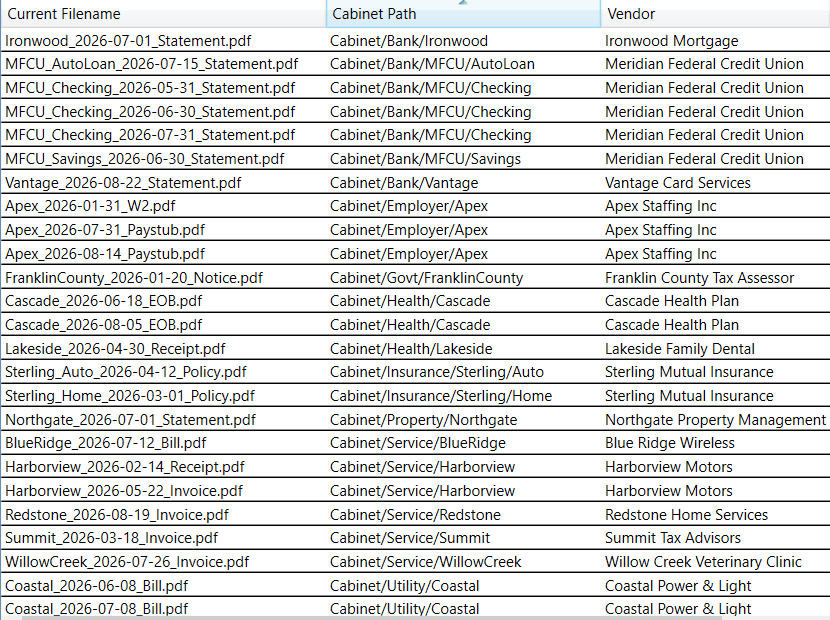
The names and folders are the filing system. Nothing here depends on a database or an app to make sense: open these folders in a browser in ten years and they still read the same way.
The hard part is keeping it up
Any convention works for the first month. It falls apart when renaming by hand becomes a
chore and a few statement (3).pdf files slip through, or when a bank changes its
name and you are left with years of old files under the old one.
That is the problem DriveFiler was built for. You tell it what a document is (who it is from, which account, what type) and it renames the file and moves it to the right folder in your own OneDrive, Dropbox or Google Drive. It reads what it can from the existing file name, so a name that already follows this convention fills itself in. If you later rename a code, every document filed under it is renamed and moved to match.
Your documents stay in your drive, and we never store them. On OneDrive and Dropbox, the filed archive is ordinary folders you can browse with no software at all. On Google Drive, it sits in private app storage, and an export puts a browsable copy in your My Drive.
DriveFiler is available for Windows and Android, with a one-month free trial. See how it works or read the help on folders and file names.